
Writing a non-fiction book with AI grounded in your own research
Five tools compared on what a research-based book actually needs: answers from your own documents, proof of what was used, and notes and a bibliography in the finished file.
Published 26 September 2026
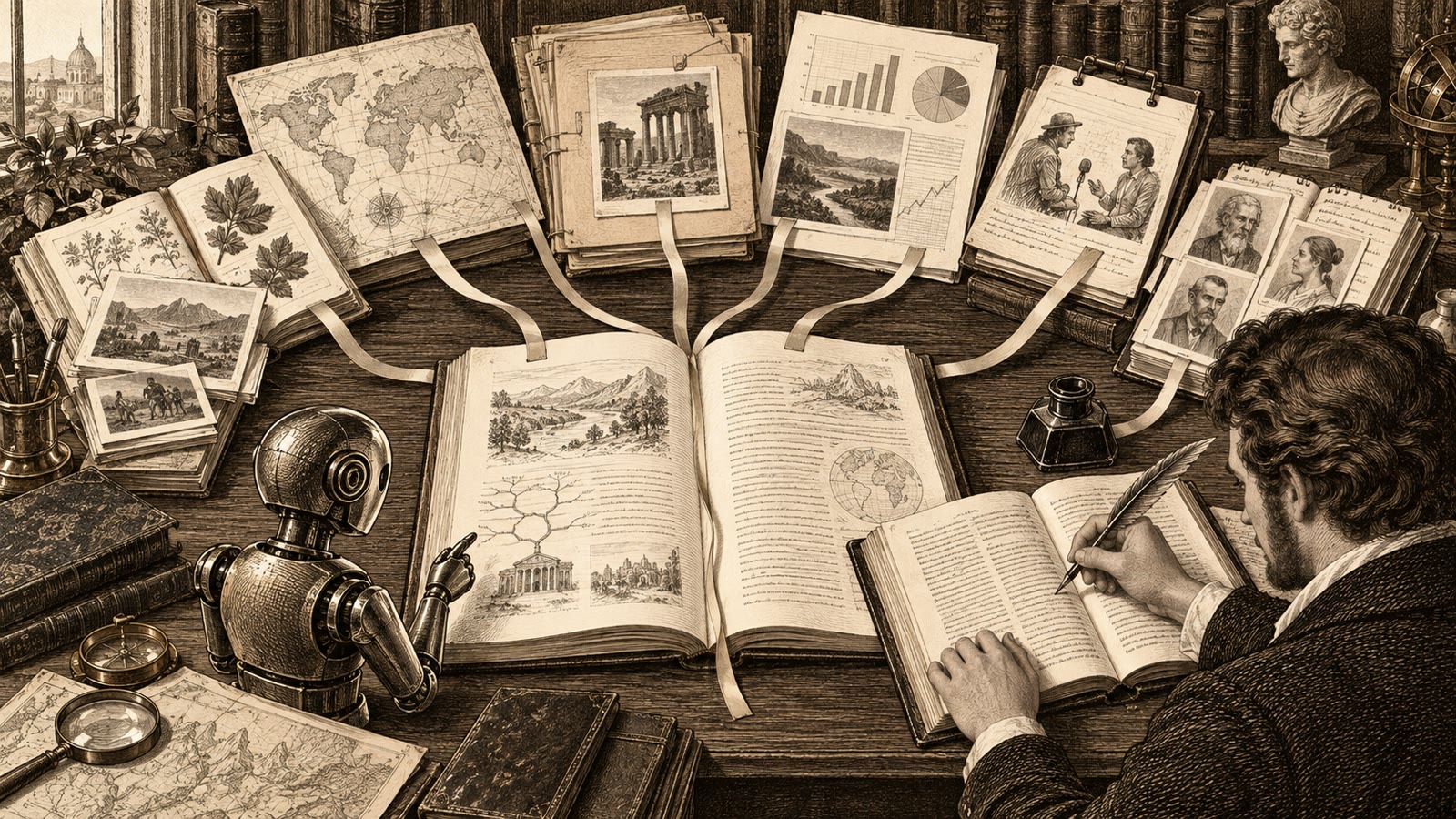
Any chatbot can write a plausible chapter about the 1987 flood. What it cannot do on its own is write the chapter your twenty-seven interviewees would recognise, where the dates match the council minutes and every quotation traces back to a transcript you hold. Generating text is the easy part. Keeping the AI tied to your evidence, and proving it in the finished book, is the real job.
A disclosure first: we build Chaptora. We checked every other tool on its own website this month and judged them on what decides this choice, in that order.
What should an AI tool for research-based non-fiction actually do?#
It should answer from your material, show where each answer came from, and keep that link alive until publication.
- Grounding you can inspect. It names the documents behind each answer.
- Your real formats. Transcripts, PDFs, spreadsheets, web pages, recorded talks.
- A place to write. Chapters and edits you can review.
- A path to citations. Notes in the text, a bibliography at the back.
- Files you can publish. Print and e-book output.
| What you need | Chaptora | NotebookLM (Gemini Notebook) | Claude or ChatGPT Projects | Novelcrafter | Youbooks |
|---|---|---|---|---|---|
| Your research in | PDF, Word, Excel, Markdown, text, web pages, YouTube transcripts, images | PDFs, Office and Google files, web URLs, YouTube, audio, ePub | Files and pasted text in a project knowledge base | Codex entries you write | Up to 20 files (DOCX, PDF, EPUB, TXT, RTF and others), plus optional web research |
| Seeing what an answer used | Used Sources chips name the Sources the AI consulted; web pages it read sit in a separate row | Inline citations in answers | Not described on the cited help pages | Per-answer source display not listed | Not listed on youbooks.com (September 2026) |
| Where the book gets written | A chapter-by-chapter manuscript; AI edits arrive as changes you accept or reject, and agent runs can be undone | A research notebook; no manuscript editor listed | A chat, plus Canvas in ChatGPT; you move text into the book | A full fiction-oriented writing app | Generated over several days, then exported |
| Citations and bibliography | Citation records, numbered Chicago notes per chapter, automatic Bibliography | Not listed on the help pages we checked | Not listed | Not listed on the Codex page | Not listed on youbooks.com |
| Finished files | Print-ready PDF in KDP trim sizes and reflowable EPUB 3 | Not listed | Not listed | Not listed on the Codex page | DOCX, EPUB, Markdown or RTF |
| Free access | Free Octavo plan with 3 Sources per Project; paid plans raise the limit | Free Standard plan, 50 sources per notebook | Claude: free, up to five projects. ChatGPT: free, with file limits by plan | 21-day trial; AI from the $8 Hobbyist plan | Plans from €9.97 per month |
1. Chaptora: how does it keep the AI tied to your research?#
It searches your uploaded research whenever a question calls for it and names what it used under the answer. The files live in the Library, inside the same Project as your chapters, so the AI Sidebar and the AI Agent draw on the same evidence. You stop pasting the same transcript into a prompt for the fifth time.
What can you put in the Library?#
PDF, Word and Excel files, Markdown, pasted text, a snapshot of a web page, and the transcript of a YouTube video: most of a non-fiction author's desk, from the survey spreadsheet to the conference talk. PDF, Word, Excel, website and YouTube Sources also get an AI Overview with three to five suggested questions, a quick way to find out whether a 90-page report deserves an afternoon.
How do you see which Source an answer came from?#
Look under the answer. When a reply in the AI Sidebar draws on your material, Used Sources chips name the Sources the AI consulted. Click one and it opens in the Source viewer beside your chapter, so you can find the passage and check the claim before it goes near the manuscript.
If you turn on web search, pages the AI read online appear in a separate row, so you can tell at a glance whether a statement rests on your interviews or on the open web. You can save a useful page into the Library; the AI never adds one by itself.
Can you point the AI at a specific interview?#
Yes. Add Context, above the AI Sidebar composer, pins a chosen Source or chapter to the conversation until you remove it. Retrieval finds whatever looks relevant; Add Context makes sure a particular transcript is in front of the AI every time. In the Source viewer, selecting a passage offers Insert into chapter, which drops the exact words at your cursor.
How does research become Citations and a Bibliography?#
Chaptora keeps two things apart on purpose. Sources are material the AI reads; citation sources are bibliographic records (book, article, website or other) that you cite. You decide what counts as a citable work.
In the Source viewer, Use as citation source opens a draft record with the type and title filled in. You complete it (for an interview, the Other type lets you write the entry exactly as it should print), then insert a Citation from the toolbar or the slash menu.
When the AI Agent drafts from your Sources, it can add citation records and place Citations in the text it writes, all inside a Run you review. Correcting or deleting a record stays your job.
On export, Citations become numbered notes in Chicago Notes and Bibliography style, restarting in each chapter, and the Bibliography is built from the records you actually cited.
What does writing a chapter from your evidence look like?#
Say chapter 6 covers the night the bridge closed. You switch the AI Sidebar to Agent mode, pin the four transcripts that describe it, and ask for a first draft of the opening section. The draft is written straight into the chapter and grouped in a Run, with a tracked diff you can read against the transcripts. If it invents a detail, you fix the sentence yourself or revert the whole Run. A loose sentence gets Cmd+K / Ctrl+K and a request to tighten it, which again arrives as a change to accept or reject. When the book is done, the same Project exports as a PDF in a KDP trim size or a reflowable EPUB 3.
That is where Chaptora differs most from a notebook or a chatbot: evidence, manuscript and review of every AI change sit in one place.
Where does Chaptora fall short?#
A Used Sources chip names the Source, not the exact paragraph, so you open it and find the passage yourself. Citations use Chicago style only, with no BibTeX or RIS import, and a scanned PDF without a text layer cannot be read. The free Octavo plan allows three Sources per Project, which is enough to test, not to write the book.
2. NotebookLM (now Gemini Notebook): best for exploring sources#
Google renamed NotebookLM to Gemini Notebook on 16 July 2026. You add sources, including audio recordings, which Chaptora cannot take, then chat with them and get grounded answers with inline citations. The free Standard plan allows 50 sources per notebook, and audio summaries are a pleasant way to review a stack of material on a walk.
What it is not, on the pages we checked, is a book editor: a chapter manuscript, citation records and print-ready export are not listed. It pairs well with a writing tool: explore in the notebook, write and cite in the book.
3. Claude Projects and ChatGPT Projects: flexible, but you are the assembly line#
Both give you a workspace with its own files and instructions. Free Claude accounts can create up to five Projects, and paid plans add retrieval that expands capacity up to ten times. ChatGPT Projects accept PDFs, spreadsheets, docs, images and pasted text, and include Canvas for drafting.
Their strength is range: one workspace handles a research question, an outline and an email to your publisher. The catch is the manual work: you carry each answer into the manuscript, remember which file supported which paragraph, and build citations and layout elsewhere. See why a chatbot is not a book workspace.
4. Novelcrafter: a strong Codex, built around story knowledge#
Novelcrafter's Codex is a well-made story bible. It tracks every mention of characters, places and objects, records how they change over time, and serves as the source of truth when the AI writes. The Codex page even has a non-fiction section.
The difference is where the knowledge comes from. Codex entries are notes you write; uploading PDFs for passage retrieval and a bibliography are not listed on the Codex page (September 2026). AI starts at the $8 Hobbyist plan with your own API key. It shines for fiction; see our Novelcrafter comparison.
5. Youbooks: fast whole-book generation from your sources#
Youbooks generates a non-fiction book of up to 300,000 words from up to 20 uploaded files (DOCX, PDF, EPUB, TXT, RTF and others), with optional web research and an optional "Human model" trained on your writing. The process runs for days, then you export DOCX, EPUB, Markdown or RTF. Plans start at €9.97 per month for 200,000 credits, roughly one credit per finished word.
That suits someone who wants a draft delivered, which is a different goal from writing your own book paragraph by paragraph. Citations are not listed on youbooks.com (September 2026).
What does a sensible workflow look like?#
Take a local history built from 27 interview transcripts and a box of council reports.
- Transcribe first. Name each file by interviewee and date; that name appears on Used Sources chips.
- Fill the Library. Drag in the transcripts and reports (text PDFs, not image scans). That many files needs a paid plan; Quarto allows 50 Sources per Project.
- Read before you write. Open each report's AI Overview and try its suggested questions, or explore the same files in NotebookLM.
- Interrogate the evidence. In Chat mode, ask "Which interviewees describe the night the bridge closed, and do their dates agree?" Check each Used Sources chip, then save the session with the bookmark icon as a Chat Source.
- Draft with the right material pinned, as in the chapter 6 scene above.
- Cite as you go. Open the transcript in the Source viewer, choose Use as citation source, write the entry with the interviewee's name and interview date, and insert the Citation after the quotation.
- Publish. Enable the Bibliography in Back matter, check the two-page Preview, and export the PDF for KDP or an EPUB.
Frequently asked questions#
Can NotebookLM write a non-fiction book?#
NotebookLM (Gemini Notebook) is excellent for questioning your sources: it answers with inline citations, and its free plan allows 50 sources per notebook. A chapter editor, citation records with a bibliography and print-ready book export are not listed on its help pages, so it works best paired with a separate writing tool such as Chaptora.
Does Chaptora add citations automatically?#
Partly. You build citation records yourself, and the Source viewer can pre-fill one from an uploaded Source. When the AI Agent drafts from your research it can add citation records and place Citations in the text it writes, inside a Run you review. The exported book gets numbered Chicago notes and can include a Bibliography.
Can I use scanned PDFs or interview recordings as Sources?#
Not directly. Chaptora reads text, so a scanned PDF without a text layer fails with a clear reason, and audio files are not a supported Source type. Transcribe interviews first, then upload the transcripts as Word, PDF or plain text. Recorded talks on YouTube work when the video has a transcript available.
Is my research used to train AI models?#
Not in Chaptora: your manuscripts and Sources are never used to train models. Google says NotebookLM (Gemini Notebook) does not train on your data unless you give feedback. For Claude, ChatGPT and other tools, check the vendor's current data settings before uploading unpublished interviews or confidential reports.
If your book rests on your own research, start with the free Octavo plan, compare the plans, or read the Sources documentation first.
Sources#
- NotebookLM is now Gemini Notebook, Google, retrieved 26 September 2026.
- Learn about Gemini Notebook, Google, retrieved 26 September 2026.
- Add or discover new sources for your notebook, Google, retrieved 26 September 2026.
- Upgrade Gemini Notebook, Google, retrieved 26 September 2026.
- What are projects?, Anthropic, retrieved 26 September 2026.
- Projects in ChatGPT, OpenAI, retrieved 26 September 2026.
- The Codex, Novelcrafter, retrieved 26 September 2026.
- Novelcrafter pricing, Novelcrafter, retrieved 26 September 2026.
- Youbooks: AI non-fiction book generator, Youbooks, retrieved 26 September 2026.