
Chapter Structure
Organize your book in the Chapter Tree, the left sidebar that holds your Chapters along with any front and back matter.
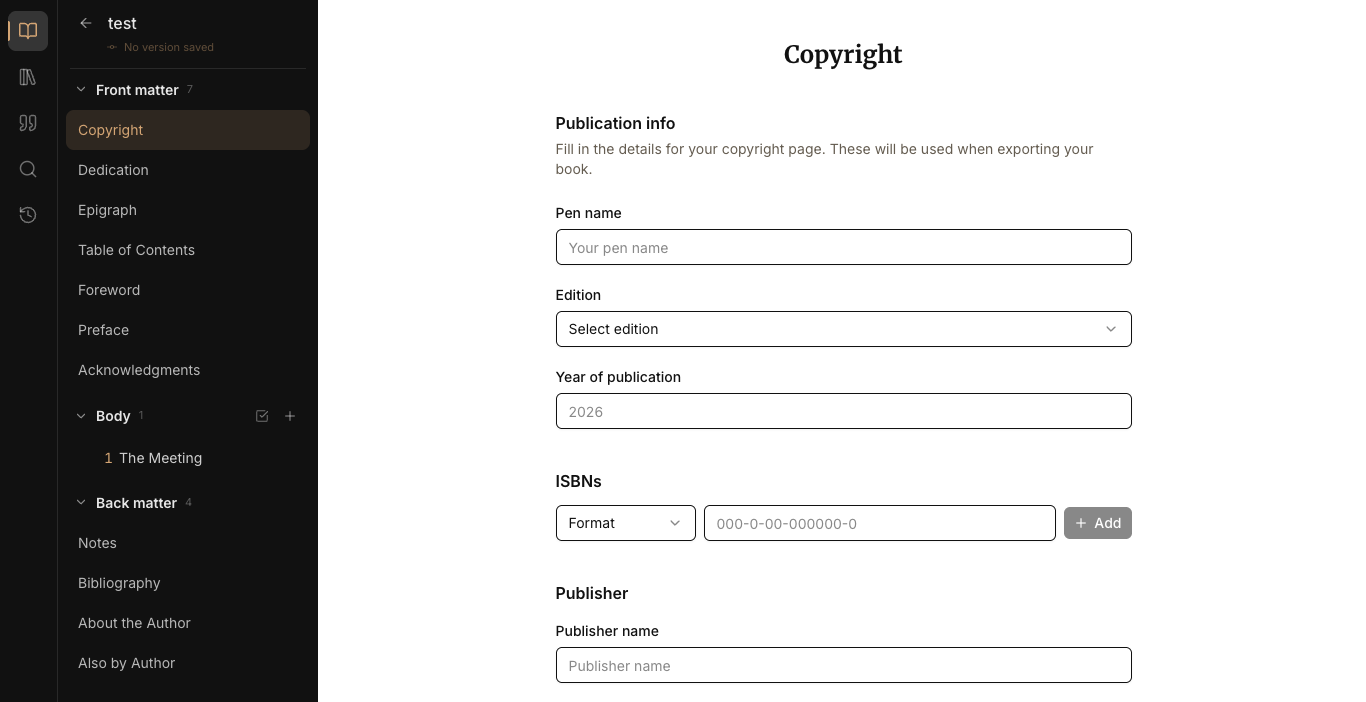
How it works#
Every Project has a Chapter Tree in the left sidebar (the Activity Sidebar). It holds three labelled sections, top to bottom:
- Front matter: pre-text material like a copyright page or dedication.
- Body: your Chapters, numbered automatically (
1,2,3…) and shown in the order they were created. - Back matter: post-text material like a bibliography or "About the Author".
Click a Chapter in the Body to open it in the Editor.
Add a chapter#
- In the Body section, click the + icon on the right of the section header.
- Type the chapter title.
- Press Enter.
Rename a chapter#
Two ways:
- Double-click the chapter title in the sidebar, edit, press Enter.
- Open the ⋯ menu on the chapter's row and choose Rename.
Press Esc to cancel without saving.
Delete a chapter#
Open the ⋯ menu on the chapter's row and choose Delete. A message in the corner shows the chapter moving to the Trash, then offers Undo for a few seconds. Undo puts the chapter back where it was.
Delete multiple chapters at once#
- Click the Select chapters icon (checkbox) at the top of the Body section. Selection mode turns on.
- Check the chapters you want to delete.
- Click Delete in the selection bar that appears at the top of the section.
- To leave Selection mode without deleting, click the X icon (where the checkbox icon was).
The chapters move to the Trash, and one Undo brings all of them back.
Get a chapter back from the Trash#
The Trash keeps every deleted chapter for as long as the project exists.
- Click the Trash icon in the bar on the far left.
- Click a chapter to read it. The Trash shows it read-only, together with the sub-chapters deleted with it.
- Click Restore, next to the chapter or above its text. It returns to its former position and opens in the editor.
If you rearranged your chapters since the deletion and another chapter now holds that position, Chaptora asks before it moves the following chapters down by one.
A chapter the AI Agent deleted says Deleted by AI Agent. While that change still waits for your review, bring the chapter back by reverting the change in the review. A chapter that restoring a version removed names that version.
Front matter and Back matter#
Front matter and Back matter are filled by enabling individual sections. To add one:
- Click the + icon on the Front matter or Back matter section header.
- Pick a section from the dropdown.
The available sections are:
- Front matter: Copyright · Dedication · Epigraph · Table of Contents · Foreword · Preface · Acknowledgments
- Back matter: Notes · Bibliography · About the Author · Also by Author
Each enabled section opens its own dedicated editor when clicked. To remove a section, open its ⋯ menu and choose Remove.
Limitations#
- Deletion is permanent. Chapters and matter sections removed cannot be restored.