
AI Agent
A goal-driven mode of the AI Sidebar. The Agent runs multi-step sessions, edits across chapters, and waits for your approval on every change.
How it works#
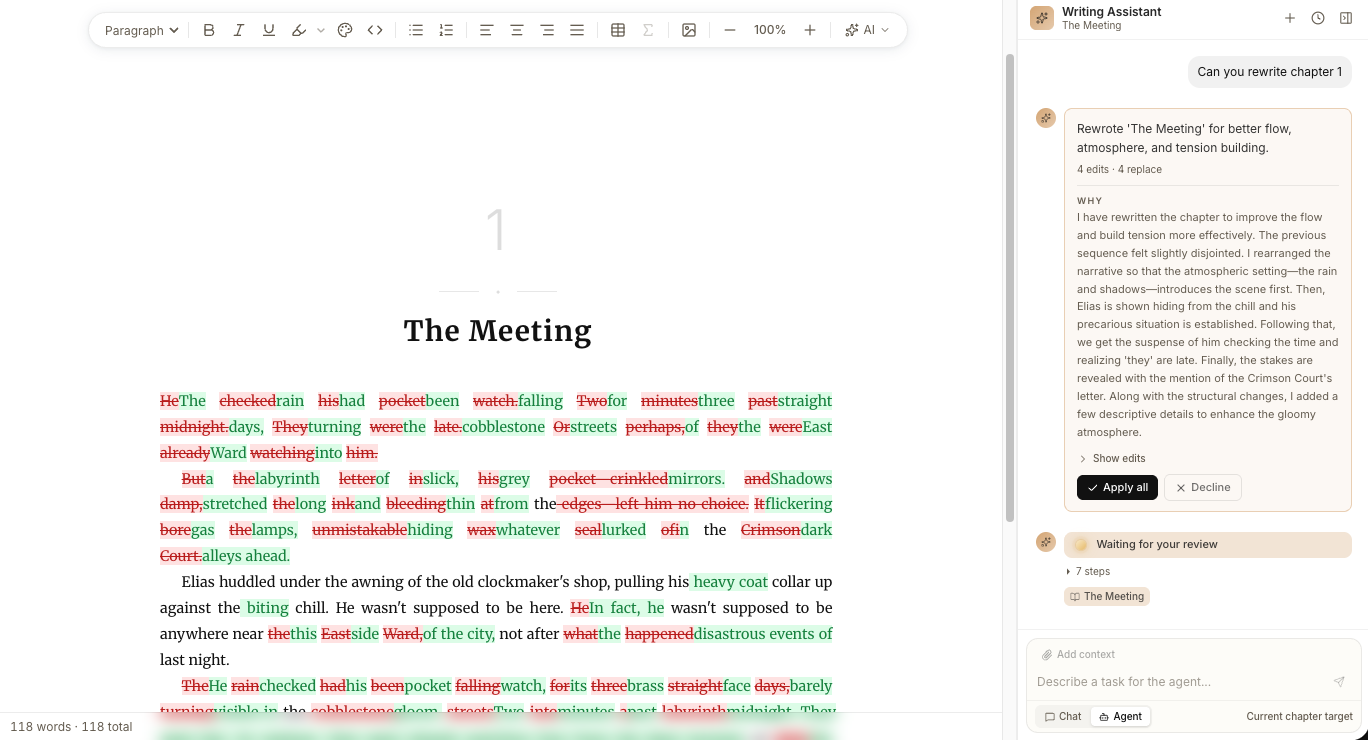
The AI Agent is the second mode of the AI Sidebar. Where Chat mode answers questions and never touches your text, Agent mode takes a goal and works through it step by step, writing into your Chapters as it goes. Every Chapter it touches is locked for typing and shown as a tracked diff until you have reviewed it.
Three concepts are worth knowing up front:
- Goal: a single instruction you give the Agent ("rewrite chapter 3 in the past tense", "draft an opening for chapter 5 from these sources", "tighten the dialogue across the final three chapters").
- Step: what the Agent did at each stage of the run. Steps include creating chapters, renaming, moving, reading sources, and writing. The list is visible in the sidebar as the run progresses.
- Change: everything the run did to one Chapter or one matter item. Each Change is reviewed on its own, and a Chapter's Change is made up of Edits.
- Edit: one red/green spot in the Editor, the same way Inline AI shows its suggestions. Inside a rewritten paragraph every changed spot is its own Edit. New or deleted paragraphs in a row are one Edit together, and a changed list or quote is always one Edit, never one per bullet point.
Switch to Agent mode#
In the AI Sidebar, click Agent at the top of the input area to switch modes. The pre-fill prompts disappear (the Agent expects a goal instead of a conversational question). The Tools menu (Web search, Image generation) is unavailable in Agent mode.
To switch back, click Chat.
Start a run#
- Open the AI Sidebar and switch to Agent mode.
Optionally pin the chapters and Sources you want the Agent to focus on, via the context menu above the input.
Type your goal in the input and press Enter.
Watch the run unfold in the sidebar. Each step appears as it completes, and the Agent's text appears in the Editor as it is written.
The Agent runs against the Chapter you're currently viewing (it's tied to a chapterId) plus any pinned context. To target a different chapter, click it in the Chapter Tree before starting the run.
Review the changes#
A Chapter the run touched shows a tracked diff in the Editor and stays locked for typing until it is decided:
- Red strikethrough: your text that the Agent removed or replaced.
- Green: the Agent's new text.
- Outline: the Edit the review bar is currently on, often just a few words.
A bar at the bottom of the Editor walks you through that Chapter's Edits:
- ← / → move between Edits and scroll the active one into view. The counter reads Edit 3 of 7.
- Accept keeps the active Edit. Reject puts your own text back in its place.
- Accept chapter keeps every Edit of this Chapter that is still open. Reject chapter drops them.
Every button in this bar acts on the open Chapter only. The run-wide Accept all and Reject all live in the Changes card in the sidebar.
Decisions are final, and later decisions never override earlier ones: Reject chapter and Reject all keep every Edit you already accepted. Once the last Edit of a Chapter is decided, the Chapter unlocks and you can type in it again. Once every Change of the run is decided, the run closes.
A Chapter the Agent created, deleted, renamed or moved is decided as a whole, as is every change to the front and back matter. A Chapter that was renamed or moved stays open until you accept or reject the Chapter itself, even when all of its Edits are decided.
A paragraph in which the Agent added, removed or moved a Citation, image or line break is one Edit as a whole, so accepting a few words can never lose a Citation.
Continue a run#
After the Agent finishes a step, you can keep the session going by typing another message in the sidebar, for example to refine the goal or say why you rejected an Edit. The run extends rather than starting over, so context is preserved. If the Agent rewrites text you already accepted, that rewrite shows up as a fresh Edit.
Cancel a run#
While the Agent is working, click Stop in the sidebar to abort the run. Partial steps stay visible and the Changes it already wrote stay open for review, so you can keep or drop them as usual.
Resume a past run#
Click History at the top of the sidebar. Past Agent runs appear in the same list as Chat conversations, newest first, with the Agent's goal as the title.
- Click an item to load it back into the sidebar.
- Send a new message in the sidebar to continue the run from where it left off.
Limitations#
- One run is active at a time per Project. Starting a new run requires the current one to be stopped or completed.
- The Agent can create, rename, move, and edit Chapters, but cannot reorder them in the Chapter Tree.
- Tools available in Chat mode (Web search, Image generation) don't apply to Agent runs.