
AI Sidebar
Chat with Chaptora's AI about your project. Ask questions, brainstorm, get summaries. The AI sidebar reads your work but doesn't change it.
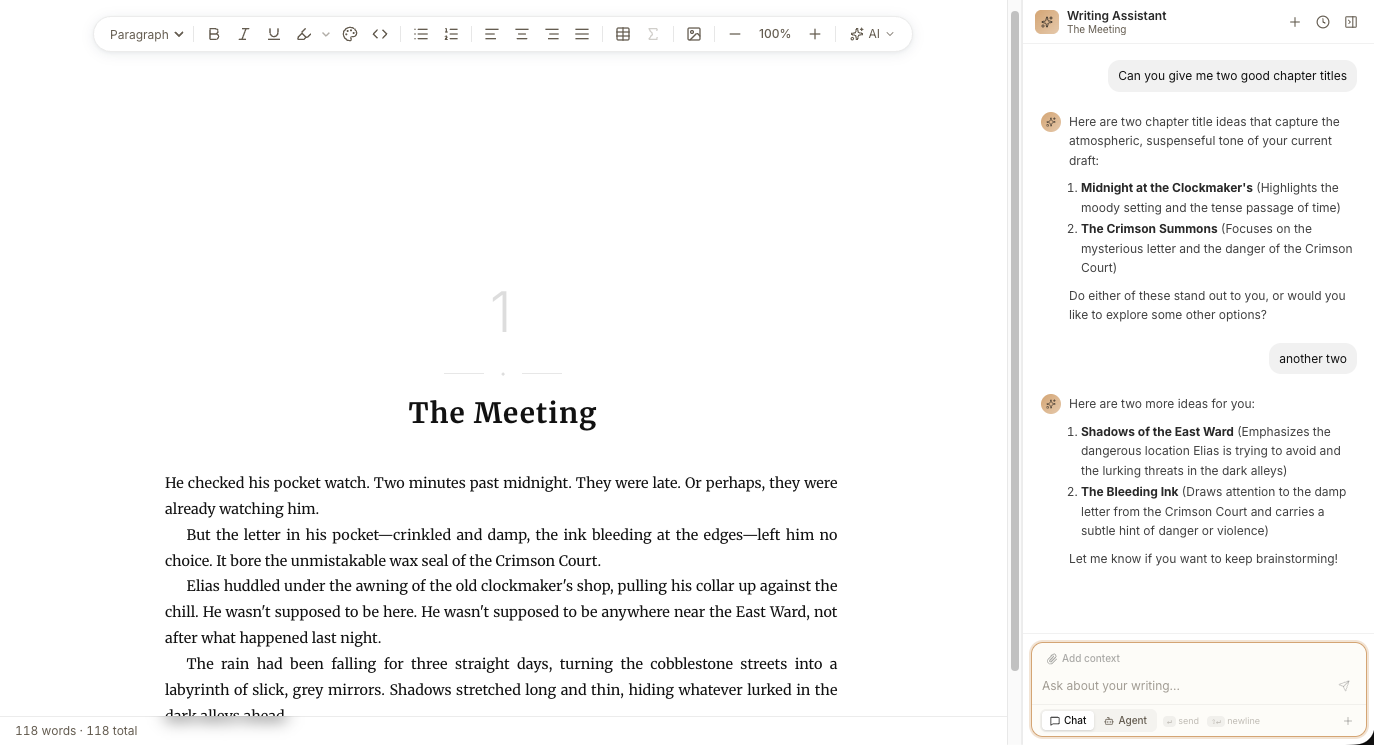
How it works#
The AI Sidebar lives on the right side of the Editor. In its default Chat mode, it streams responses from Chaptora's AI and never touches your chapter text. It's a read-only assistant for thinking out loud, asking questions, and exploring ideas. Switch to Agent mode if you want the AI to propose actual edits across chapters. See AI Agent.
Open the sidebar#
Click the ✦ AI Assistant button in the top-right of the editor area. The sidebar slides in from the right. Click the panel icon at the top of the sidebar (or the AI Assistant button again) to close.
Send your first message#
- Type your question or instruction in the text box at the bottom of the sidebar.
- Press Enter to send. Shift+Enter inserts a newline.
- Watch the response stream in. Click Stop if you want to cancel mid-response.
Three one-click prompts are pre-loaded on a new chat:
- Brainstorm ideas: generate ideas for the current chapter.
- Continue writing: pick up from where you left off.
- Summarize: recap what you've written so far.
Give the AI context#
By default the AI sees the project's writing style and (in Chat mode) the chapter you're currently editing. You can add more context in three ways:
- Pin a Source or chapter: open the context menu above the input and pick from your uploaded Sources or other chapters. Pinned items stay in context for the whole conversation until you unpin them.
- Attach a file or image: drag a file into the sidebar, or click the paperclip icon. Text files are inlined; images and documents are sent as attachments.
Tools#
Two optional tools live behind the Tools menu (Chat mode only):
- Web search: lets the AI search the web while composing its answer. Useful for fact-checking and current information.
- Image generation: when enabled, the AI can return generated images alongside text. Click a generated image to preview, then Save it as a Source for later use.
Manage chats#
Past conversations are kept per Project.
- New chat: click + at the top of the sidebar.
- Save as Source: click the bookmark icon to keep the conversation's findings as a Chat Source. Chaptora distills the conversation into a research note the AI can search later. The icon is disabled until there is something new to save.
- History: click History. Past chats and Agent runs appear together in one list, newest first.
- Resume: click any history item to load that conversation back into the sidebar.
- Delete: open the ⋯ menu on a history row and choose Delete.
Cancel a response#
While the AI is streaming, the Send button becomes a Stop button. Click it to halt the response immediately. The partial reply stays in the chat.
Limitations#
- The AI Sidebar can't directly edit your chapter text. For edits, use Inline AI for cursor-level changes or the AI Agent for multi-chapter changes.
- Tools (Web search, Image generation) are available in Chat mode only, not in Agent mode.
- Generated images must be saved as a Source before they can be inserted into a chapter.