
Canon
Your project's cast list: the Characters in your book and the Relationships between them, curated by you and read by the AI so it writes consistently with what you confirmed.
How it works#
The Canon is your book's world, kept per project: the Characters, the Places (from a room to a country), the significant Objects (a sword, a letter, a ring), the Relationships between them, and the Events that continuity depends on. The AI reads the Canon whenever those come up, so suggestions from the AI Sidebar, the AI Agent, and Inline AI stay consistent with what you confirmed — names, aliases, and how everything is connected.
Nothing enters the Canon on its own. You either add an entry yourself, or you confirm a find that a scan surfaced. The AI can read the Canon, but it can never write to it.
Open the Canon panel#
Click the Canon icon in the activity bar. A badge on the icon shows how many open finds are waiting for your decision.
The panel has four tabs: Characters, Places, Objects, and Timeline. Each of the first three lists its entries with search over names and aliases. Click an entry to open its profile, where you can edit the name, aliases, and description in place — and see and manage its Relationships and the Events it takes part in. If a scan filed a village under Characters, change its kind to Place while editing.
Add to the Canon#
- Open the + menu at the top of the Canon panel.
- Choose Add Character, Add Place, or Add Object — name, optional comma-separated aliases (like "Mom", or "the old village"), and an optional free-text description.
- Or choose Add Relationship — pick any two entries and describe how the first relates to the second, like "mentor of", "lives in", or "owns". Labels you've already used are suggested as you type.
- Or choose Add Event — what happens, the chapter where it happens, and who and what it involves.
A Relationship reads in one direction ("Elena → mentor of → Jakob", "Mael → owns → the Ashen Blade"), but a label like "sibling of" naturally works both ways — there's no fixed list to pick from. Who owns an Object is a Relationship, so a change of owner shows in the chapters that state it.
The Timeline#
An Event is something that happens and matters for continuity: a death, an injury, a first meeting, a change of owner, a journey, a secret revealed. A one-time act like "Mael kills the boy" is an Event, not a Relationship. The Timeline tab lists your Events chapter by chapter, in story order.
Story order is your chapter order, except for flashbacks. To mark one, choose the flashback chapter under Story order at the bottom of the Timeline and pick the chapter it takes place before. Everything else stays in chapter order, so you only mark the exceptions. Deleting a chapter keeps its Events; they move to the end of the Timeline.
Let Chaptora find your cast and world#
Instead of typing everything in by hand, let a scan read your text:
- Open the scan menu at the top of the Canon panel.
- Choose Scan Chapter for the chapter you have open, or Scan Book for the whole project. A book scan reads one chapter at a time, in story order, and a small window at the bottom right shows which chapter it's on.
- Each person, place, object, relationship, or event the scan recognizes appears as a card in the panel, labeled with what it is and the chapter it was found in. Something new about an entry you already confirmed (another name, a new fact) arrives as a Change card that shows exactly what it would add or remove.
- Confirm what's right — you can correct the name or trim the description first — or Dismiss what isn't.
With several cards open you can select them with checkboxes (or Select all) and confirm the whole selection at once.
A few things the scan takes care of for you:
- Each chapter knows the ones before it. During a book scan, a person found in Chapter 3 is recognized in Chapter 9 instead of turning up twice under two names.
- No merges on a guess. Two finds become one only when they carry exactly the same name. "Mael's mother" stays a different person from Mael, and when the AI isn't sure two names are one person, you get two cards to decide.
- Real aliases only. An alias names one specific person. Words like "she", "the man", or "friend" are never suggested, and a Change card can propose removing such a word from a Character you already confirmed.
- Shared aliases are fine. Two captains can both be "the captain". That never makes them one person: hovering "the captain" shows both, and the AI sees both.
- Dismissed stays dismissed. A find or change you threw away doesn't come back on the next scan, not even under a variant name.
- Already known is skipped. The scan never re-suggests an entry, Relationship, or Event you already confirmed, nor the same bond the other way around.
- Events stay few. A chapter proposes only the few Events that matter for continuity, not everything that happens in it.
- Relationships and Events need their entries. Confirm the people, places, and objects first; with several cards selected, confirming the whole selection does that in the right order.
When the scan asks you#
Some things only you can decide. Then the scan stops and asks a Scan question in a window over the app, and uses your answer for every chapter that follows:
- Two passages disagree — a chapter against your Canon (a description, or an Event on the Timeline), or (in Scan Book) a chapter against an earlier one: green eyes in Chapter 3, blue in Chapter 12; the boy talks after he was killed. You see the conflict in one sentence and both passages with their chapters. Checks follow story order, so a flashback is never reported as an error.
- Two names may be one person — is "Elara" the same as "Elara Moon"?
- A shared alias — which of the two captains is "the captain" in this passage?
For a contradiction you can answer:
- "Chapter 7" is right (or The Canon is right) — the other passage opens in the Editor, highlighted. Fix it in your own words; the scan waits in its window at the bottom right. Click Continue and the scan reads that chapter again before it goes on.
- The text is right, update the Canon — the question shows the change first; your answer applies it at once.
- Not a mistake — an unreliable narrator or a lie in dialogue. Remembered for good, so it never comes back.
- Your own words — "She wears colored lenses." Remembered like "Not a mistake", and the scan reads the rest of the book with your explanation.
Closing the window is an answer too, so a scan never gets stuck: a closed contradiction counts as "Not a mistake", and for a name or alias question the AI goes on with its most likely answer. Anything that would change your Canon still arrives as a card for you to confirm.
Scan Chapter compares the chapter with your Canon only; comparing chapters with each other is what Scan Book does. The scan never edits your manuscript, and a consistent book gets no questions.
Where everything appears#
An entry's profile lists the chapters that mention it, found with the same rules as the underlines in the Editor — always current, and free. Each Relationship shows the chapters whose text states it: the chapter its card came from, plus every later scan that finds it again.
The Canon graph#
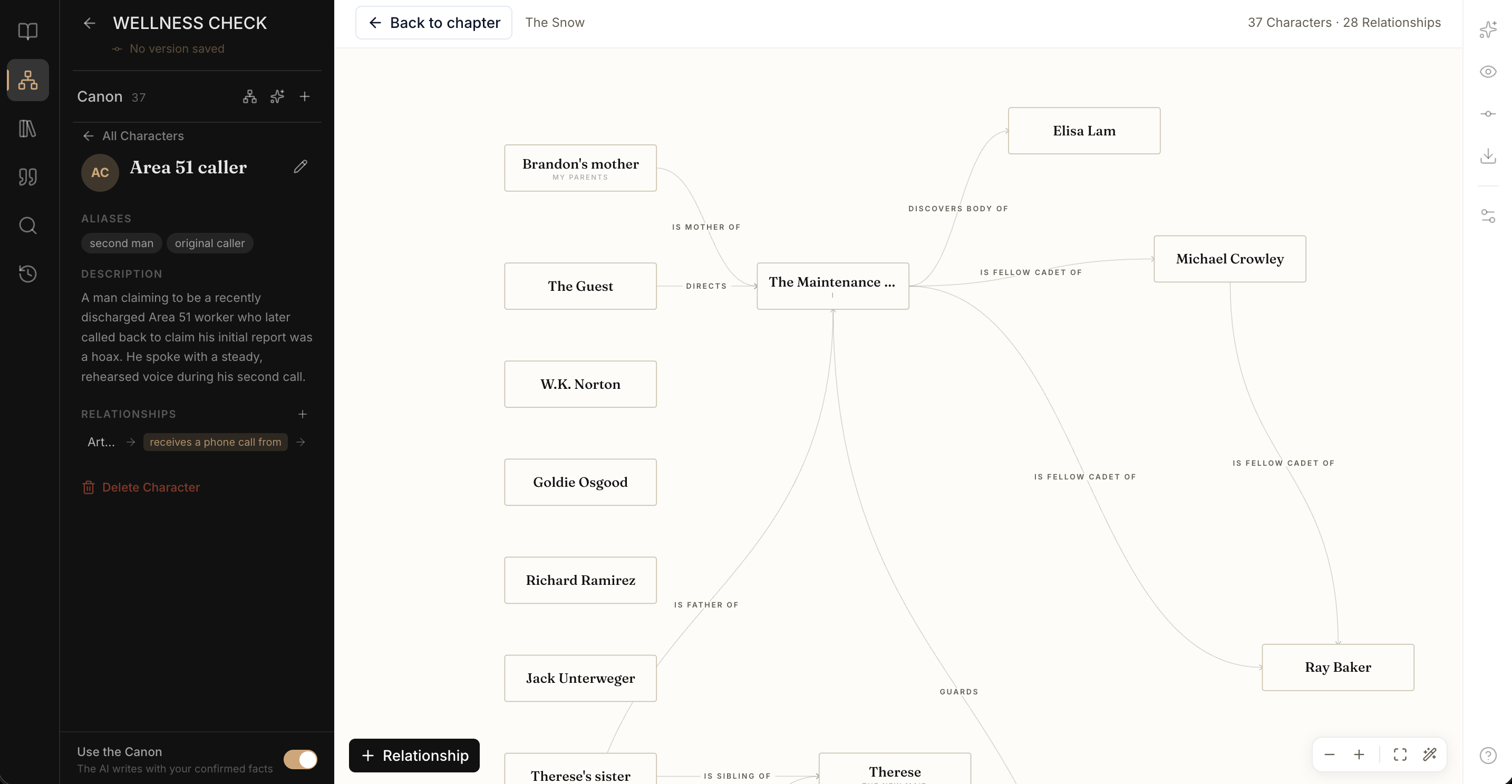
Click the graph icon at the top of the panel to see the whole web at once: every Character, Place, and Object as a node with its own icon, every Relationship as a labeled line. An Event between exactly two Characters ("Mael kills the boy") is drawn as a dashed line between them; every other Event lives on the Timeline. The layout is stable — the same Canon always draws the same picture — and you can drag nodes around or click Tidy up to rearrange everything with minimal crossings.
Clicking a node opens that entry's profile in the panel. Back to chapter returns you to the Editor.
Canon mentions in the Editor#
Once a Character, Place, or Object is in the Canon, its name (and aliases) are underlined wherever they appear in your chapters. The underline is a promise: the AI sees this entry too.
- Hover a mention to see a card with its kind, name, aliases, and a description excerpt. An alias that several entries share shows all of them.
- Click Open in Canon on the card to jump to the profile. Cmd+click (macOS) or Ctrl+click (Windows / Linux) on the mention does the same.
- A plain click just places your cursor, like in any other text.
@-mentions in the AI Sidebar#
Type @ in the AI Sidebar composer to open a picker over your Characters (Places and Objects aren't offered there). It filters names and aliases as you type and inserts the full name into your message — a quick way to point the AI at exactly the right person.
How the AI uses the Canon#
When a Canon Character, Place, or Object is mentioned in the text the AI is working on — or in your message to it — Chaptora includes its description, aliases, and Relationships in what the AI reads. The AI Sidebar and AI Agent also see its direct connections; Inline AI gets a slimmer version to stay fast.
An empty Canon costs nothing: if nothing matches, nothing is added.
Turn the Canon off#
The switch lives at the bottom of the Canon panel and covers everything in it. Off means no underlines, no scans, and nothing added to what the AI reads — for example when you're writing non-fiction. Your Canon is kept, so turning it back on loses nothing.
Limitations#
- The Canon tracks people (plus animals and creatures that act in the story), places, significant objects, and events. Lore such as magic systems, religions, or species, and groups of people aren't structured entries — describe them in an entry's description or in your Sources.
- Story order is set per chapter. Events have no free dates such as "Year 3, winter".
- Mentions are underlined in Chapters only, not in front or back matter.
- Dragged graph positions last while the graph is open; reopening restores the standard layout.
- The Canon is reference material like Sources: it isn't part of version history and isn't affected by Restore.