
The Editor
The main writing surface for a Chapter. Auto-saves as you type, with a familiar formatting toolbar and quick keyboard access to everything you'll need to write a book.
How it works#
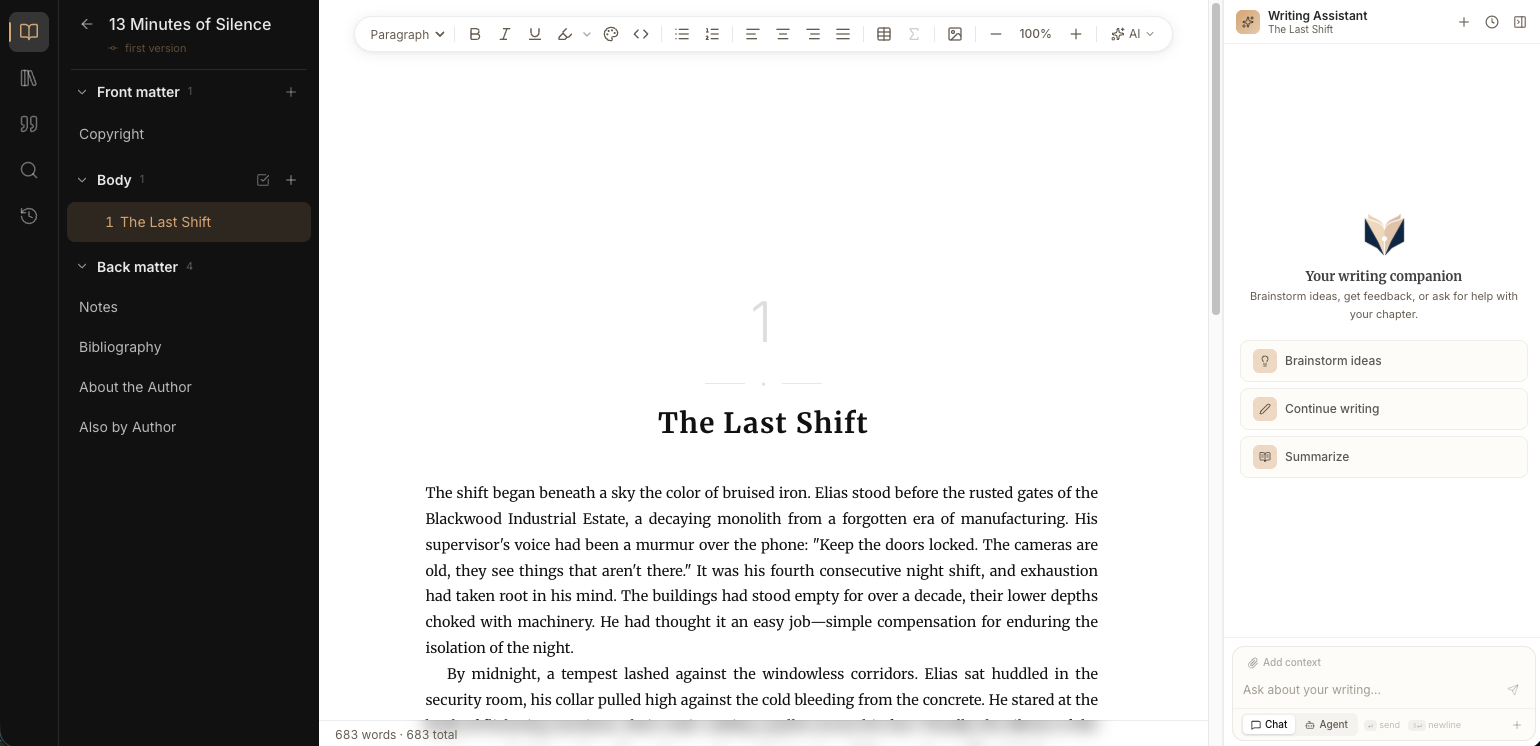
A Chapter opens in the Editor when you click it in the Chapter Tree. Everything you type is auto-saved. The save dot beside the chapter title shows the current state, so you don't need to press anything to commit. Below the body, the word count bar shows the chapter total and your current selection count. The undo and redo arrows at its right end step your changes back and forward across all chapters, titles included. When the change belongs to another chapter, that chapter opens.
Format your text#
The toolbar handles every standard formatting need, left to right:
- Block type: Paragraph or Heading 1 through 5. Use the block-type dropdown.
- Inline marks: Bold, Italic, Underline, Inline code. Their shortcuts are in the table below.
- Lists: bulleted and numbered. Press Tab to nest a list item, Shift+Tab to unnest.
- Alignment: left, center, right, justify.
- Highlight: six preset highlight colors.
- Text color: an 8-color palette with 4 shades each.
Insert images, tables, and equations#
Three special-content types live in the toolbar:
- Images: click the image icon and upload from your device. Images render inline at full width by default.
- Tables: click the table icon. A 3 × 3 starter table is inserted; use the table-options popover to add or remove rows and columns.
- Equations: click the math (Σ) icon. Enter LaTeX-style syntax; the equation renders inline or as a block.
One-click AI actions#
The toolbar's ✦ AI button opens a dropdown with four fixed AI actions. Each runs on the current selection (or the current paragraph if nothing is selected) and returns the result as a red/green Diff Approval you accept or reject:
- Proofread: scans the text for grammar, spelling, and punctuation issues and proposes corrections.
- Rephrase: rewrites the text while keeping its meaning, useful when a sentence feels awkward.
- Expand: adds detail and length, turning a short sentence into a fuller paragraph.
- Shorten: tightens the text into fewer words without losing the point.
Other AI surfaces#
- The Slash menu and Cmd+K / Ctrl+K take free-form prompts to insert or edit text at the cursor.
- The AI Sidebar on the right answers questions about your project without modifying the text.
Keyboard shortcuts#
| Action | macOS | Windows / Linux |
|---|---|---|
| Undo | ⌘+Z | Ctrl+Z |
| Redo | ⌘+⇧+Z | Ctrl+Shift+Z |
| Bold | ⌘+B | Ctrl+B |
| Italic | ⌘+I | Ctrl+I |
| Underline | ⌘+U | Ctrl+U |
| Inline code | ⌘+E | Ctrl+E |
| Highlight | ⌘+⇧+H | Ctrl+Shift+H |
| Inline AI on selection | ⌘+K | Ctrl+K |
| Slash menu | / at line start | / at line start |
Limitations#
- Undo history lasts as long as the tab. Reloading the page starts it fresh, and a chapter the AI Agent changed loses its earlier steps. Deleted chapters come back from the Trash.
- Pasting Markdown renders as plain text. Apply formatting via the toolbar after pasting.
- Proofread, Rephrase, Expand, and Shorten run on the current selection or paragraph only, not the full chapter at once.
- Tables are inline and best used for short reference data. Long multi-page tables are better authored outside Chaptora and inserted as images.