
Inline AI
Trigger AI suggestions directly inside the editor, without leaving your text. Every change is shown as a red/green diff that you explicitly accept or reject.
How it works#
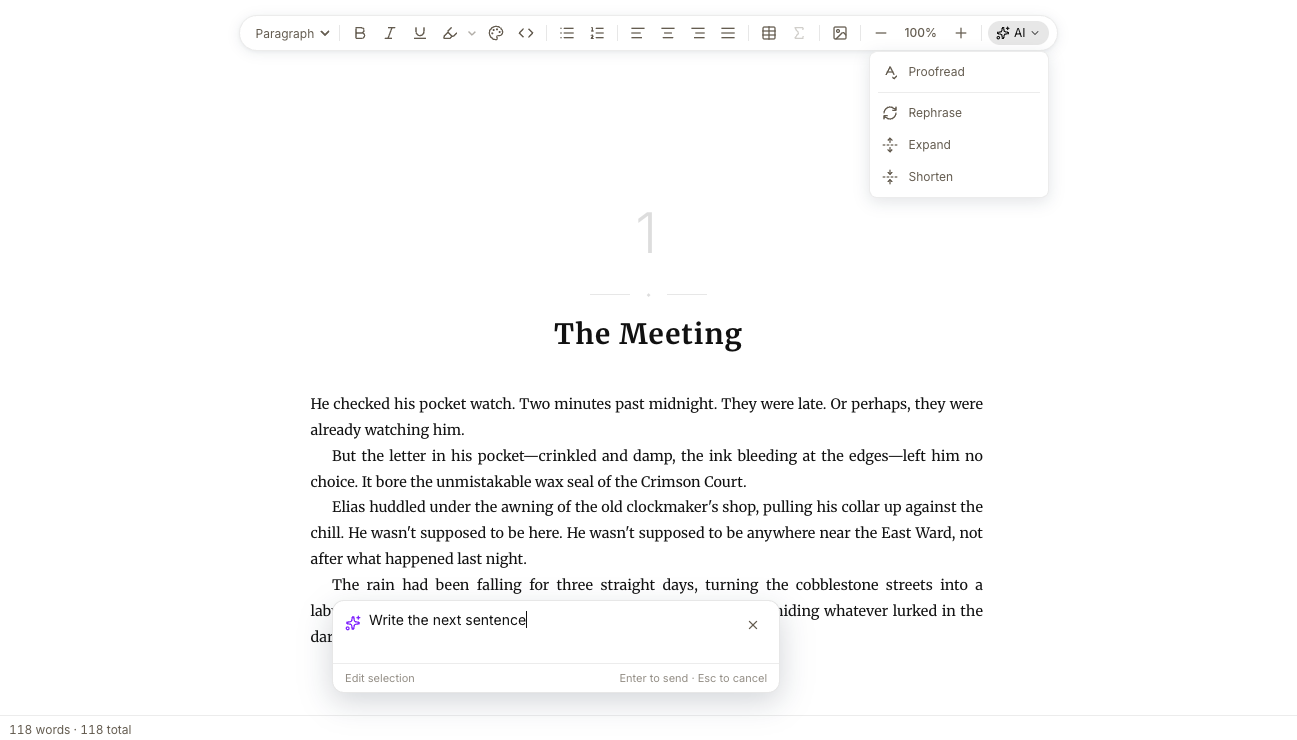
Chaptora's Inline AI has two entry points that share one floating prompt overlay and one approval workflow:
- The Slash menu inserts new text at the cursor.
- Cmd+K / Ctrl+K edits text you have selected.
Every change the AI returns is shown as a red/green diff in the Editor. The AI never overwrites your text silently. You step through the diff and explicitly Accept or Reject.
Insert new text with the Slash menu#
Use the Slash menu when you want the AI to write something where your cursor is.
Type / at the start of a line or right after a space.
Pick AI from the menu (use the arrow keys, or just keep typing to filter).
Describe what you want, for example "write a paragraph about the protagonist's childhood."
Press Enter. The new text streams in at the cursor.
Press Esc while it's streaming to cancel.
Edit selected text#
Use Cmd+K / Ctrl+K when you want the AI to rewrite text that's already there.
- Select the text you want to change.
Press Cmd+K (macOS) or Ctrl+K (Windows / Linux).
Type your instruction in the overlay, for example "make this more emotional" or "shorten this to one sentence."
Press Enter. When the response arrives, the Diff Approval bar opens at the top of the Editor.
Diff Approval: accept or reject#
After an Inline AI edit returns, the Editor enters review mode:
- Red strikethrough = your original text.
- Green = the AI's proposal.
The bar at the top of the Editor walks you through every suggested change:
- ← and →: step between suggestions.
- Accept: keep this suggestion.
- Reject: discard this suggestion.
- Accept all: keep every suggestion in this edit.
- Reject all: discard every suggestion and revert.
Reviewing one suggestion at a time is useful when the AI rewrote a paragraph. You can keep the sentence that worked and reject the one that didn't.
Toolbar AI button#
The ✦ AI button in the Editor toolbar is the same entry point as the Slash menu. Clicking it opens the prompt overlay in insert mode at your cursor. Use whichever feels more natural.
Limitations#
- Inline AI sends the current paragraph plus a small amount of preceding context, not your entire chapter. To reference more material, pin the relevant chapters and Sources in the AI Sidebar context menu before triggering the edit.
- Once streaming starts, you can't edit the response mid-stream. Cancel with Esc and retry with a different prompt.
- Inline AI doesn't run when there is no Chapter open in the Editor.